Xubuntu 18.04 on the T100TA

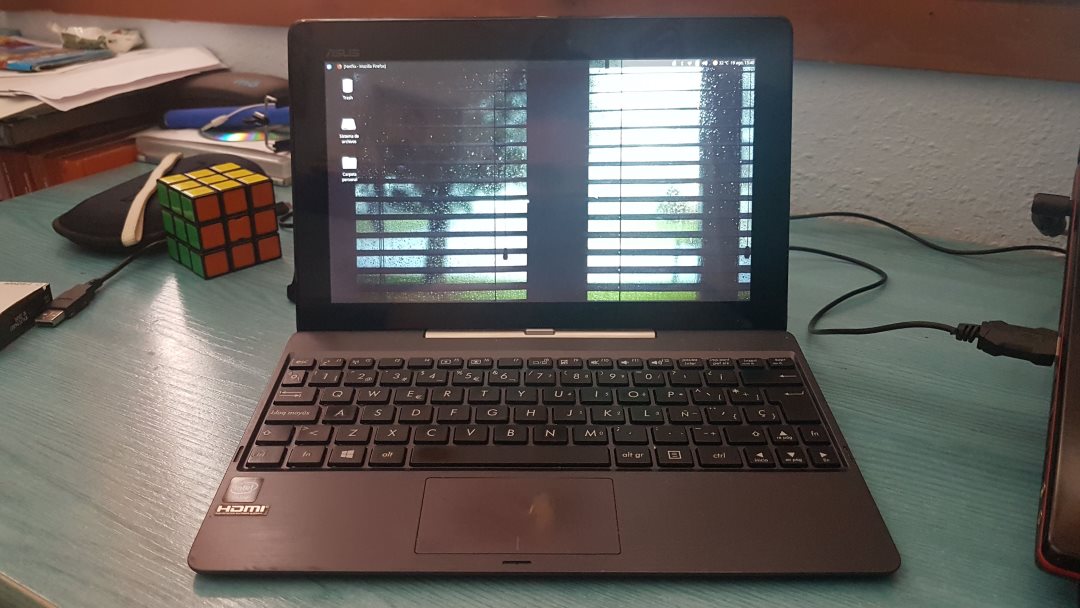
After seeing the latest updates in the kernels, consulting the Google Plus group (note: Google+ shut down in 2019, you can see the archived group here. The community is now on Facebook) and the new guide they made describing the installation process in a simple way, I ventured to have Linux on the little one again. In addition, a large part of the problems that existed (physical buttons didn’t work, nor the backlight, nor the microphone…) have been solved.
As I already explained in the entry that I wrote in English a few years ago, the first thing I did was a backup of the entire hard drive with Macrium Reflect, since it only has 64GB maximum and, in case I break something I shouldn’t, I prefer to have the entire copy.
The decision to switch to Linux is quite personal. In Windows 10 everything works perfectly and it’s a quite stable system for the tablet, while in Xubuntu the camera doesn’t work and you have to make some workaround for sound to work, which doesn’t work by default after installation. In my case, I am very familiar with a Windows environment, and I would like to learn to manage myself more with the Linux terminal and, in general, adapt more to the system. In addition, although the price of the Windows license comes included in the price of the laptop, I am very attracted to the free software philosophy, and by using Windows I cannot fully understand it. If you want to take a look at it, here is the link: https://www.gnu.org/philosophy/philosophy.es.html
Installation
I started the process wrong, because I downloaded Ubuntu instead of Xubuntu, although this way I was also able to test the new version of GNOME and how it worked on the laptop.
For the entire system installation, I followed this guide, so if you have any questions, I recommend consulting it, because here I will skip some details.
Let’s get to work: I burned the ISO on a pen drive with Rufus and added the bootia32.efi file so it could boot the installation process. After turning it on, I selected the options to have the system to my liking and created partitions using the entire disk (deleting Windows and respecting the UEFI).
The first problem starts when the installation finishes, and that is installing the bootloader. To do this, you have to connect the WiFi as the guide indicates:
cp /sys/firmware/efi/efivars/nvram-* /lib/firmware/brcm/brcmfmac43241b4-sdio.txt #useful now
cp /sys/firmware/efi/efivars/nvram-*  /target/lib/firmware/brcm/brcmfmac43241b4-sdio.txt #useful after reboot
modprobe -r brcmfmac
modprobe brcmfmac
And proceed to install the bootloader:
apt update
apt install grub-efi-ia32 # grub-pc removed is normal behavior
grub-install --efi-directory /boot/efi
update-grub
The second problem comes when trying to have sound. For it to work, we have to download this folder of files, extract it and follow the instructions:
sudo rm /var/lib/alsa/asound.state
sudo mkdir /usr/share/alsa/ucm/bytcr-rt5640
sudo cp HiFi bytcr-rt5640.conf /usr/share/alsa/ucm/bytcr-rt5640
sudo alsactl restore
After this, we lower the volume and restart, although we still won’t have sound. We still have to copy a file to replace the one that has just been created automatically.
sudo cp kernel4.5.xand4.4.x.asound.state /var/lib/alsa/asound.state
sudo alsactl restore
With this, we should have the sound working, being able to modify the parameters with Pulseaudio with the pavucontrol command.
Post installation
After installing the operating system, in my case I really like to look at how I can finish optimizing it even though it already works decently. If you are interested in looking at how you can optimize Xubuntu or change certain values to make it more comfortable for you, you can take a look at this guide: https://sites.google.com/site/easylinuxtipsproject/first-xubuntu.
My recommendation is that, at least, you decrease the use of swap, optimize Firefox and disable the use of Java with LibreOffice (and some of the options that they tell us about in the guide). However, this type of tweaks can lead us to have some instability in the system, as Gérard Burger points out in this post (note: Google+ shut down in 2019, you can see the archived group here..
Other changes I’ve made have been to activate vertical sync in XFCE after changing the desktop environment (watching YouTube or Netflix was a bit of torture without it), installing the Restricted Extras, activating the extra repositories, and deleting the remaining GNOME leftovers. In addition, I have changed the mouse movement, going from having to press two fingers and slide down or up as is the standard on many touchpads, to making circles on it, since it seems much more comfortable to me.
If you notice, this time I have not installed either Dropbox or Chrome, because I am not using them as much as I did at university. Also, this time I have installed Visual Studio Code, because I have gotten used to this cross between code editor and modular IDE, which allows me to work quite smoothly once you get the hang of it. If you install it and want to learn the shortcuts or different settings you can change, you have a good tutorial in this Microsoft repository. For example, this entry I am editing completely with this editor, being able to see the Markdown preview with the combination ctrl+shift+v (and, moreover, with ctrl+k v you can have a live preview while we make changes), and being able to manage git directly in it.
Something I still have to change, for example, is the use of the touch screen, which works like a mouse and it would be interesting if it worked like in Windows, from my point of view: being able to drag elements instead of having to click on the scroll bar. For web browsing it is much more intuitive and accessible, and I’m sure there is some way to change it.
For now, I don’t miss anything I did in Windows, so I will continue using it for at least a few months. If you have any questions about the process, don’t hesitate to contact me by email or Twitter.
Cheers!